Preparing Generated Videos for Distribution
Prepare AI-generated videos for distribution with practical conversion settings, privacy checks, playback tests, and a reliable preservation workflow.
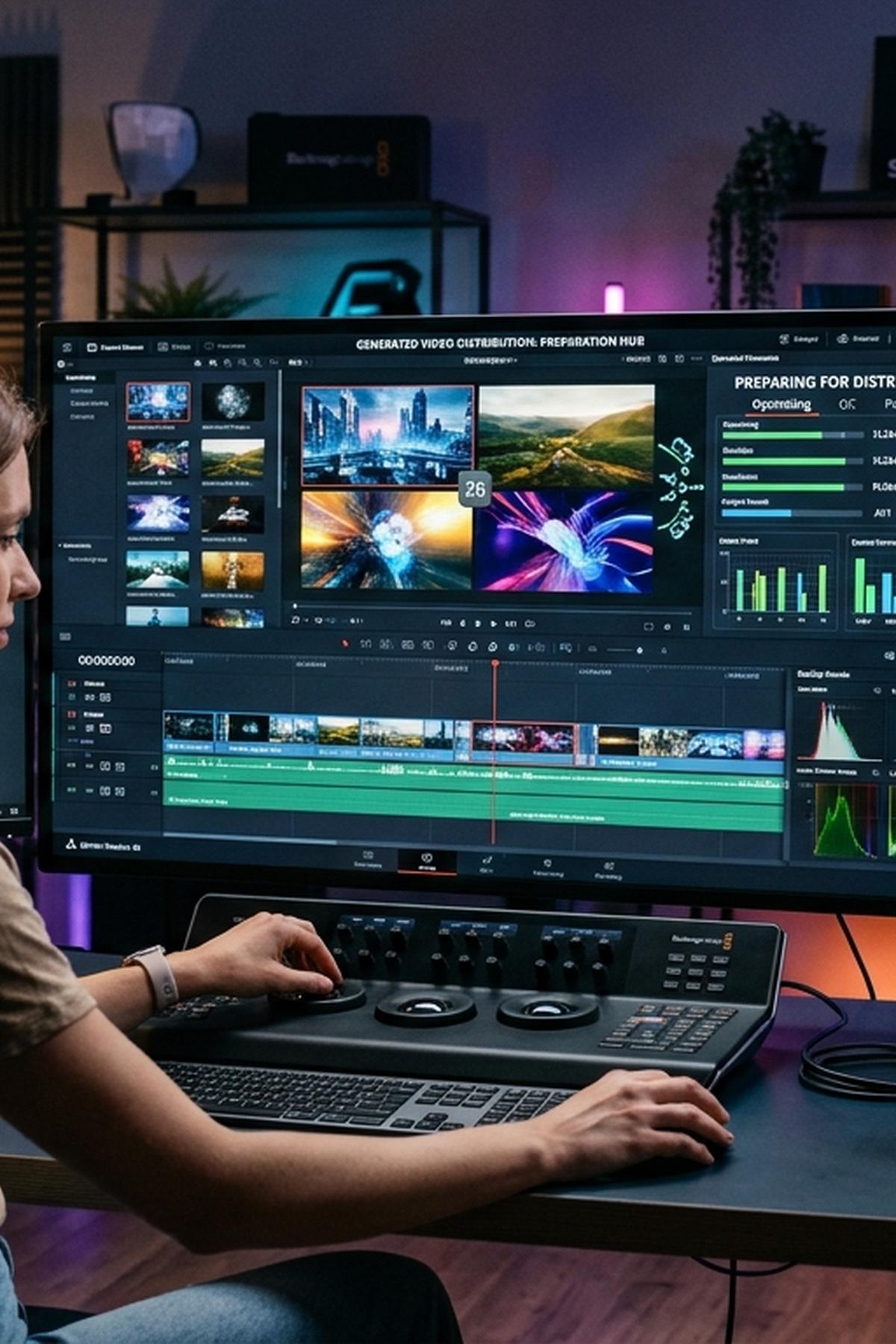
Your generated shot looks convincing in its preview window. Then you upload it, and the product label turns soft, the colors shift, or the clip refuses to play. That gap between a successful generation and a dependable delivery file is where good footage often loses its value. Preparing generated videos for distribution means protecting the image you created while making a file that other people can open, review, publish, and keep.
Three Checks Before Delivery
- Match the export to its intended viewing destination.
- Check privacy before processing unreleased material online.
- Preserve the original and inspect the delivered version.
Define the Destination Before Converting
A client review copy, a vertical social post, and an editing master serve different purposes. Start by writing down where the clip will go and what the recipient needs to do with it. A reviewer may need easy playback. An editor may need a file that tolerates further grading. A publishing platform may require a particular frame shape or duration.
Record the destination requirements and the date you checked them. A delivery note dated October 27, 2026, is more useful than an undated instruction copied from an old project. Requirements and service features can change. Treat familiar export settings as a starting point, then confirm the current upload instructions for the actual destination.
Separate technical acceptance from visual success. A platform can accept a file while cropping a logo, hiding captions under interface controls, or compressing delicate textures. For image-to-video work, composition belongs in the delivery plan from the beginning.
Inspect the Generated Source Before Exporting
Download the original generation rather than recording its preview with screen capture. Keep that download untouched. Inspect its dimensions, frame rate, duration, video codec, and audio tracks with a media information utility or your editor’s file properties panel.
The filename extension tells only part of the story. MP4 is a container. The video inside it may use different codecs, and those codecs affect playback support. Renaming a file from another extension to .mp4 does not convert its contents.
Watch the source from beginning to end before making derivatives. AI animation can introduce a warped hand for three frames or make package lettering drift near the end. Conversion cannot reconstruct missing detail or restore a product shape that changed during generation. Fix those problems upstream through regeneration, trimming, compositing, or repair.
For another generation attempt, keep the source image aligned with the final composition. Leave room around the product for a vertical crop. Use a restrained motion prompt: “Locked camera, gentle fabric movement, preserve package geometry and printed lettering.” A prompt guides the attempt. It does not guarantee that the model will preserve every detail.
Choose Between Repackaging and Re-Encoding
There are two different operations behind many conversion workflows. Repackaging, often called remuxing, changes the container without recompressing the video stream. Re-encoding decodes the video and compresses it again with selected settings.
If the existing streams already meet the destination requirements, repackaging can avoid an unnecessary compression pass. If you need another codec, a smaller frame size, or a different bitrate, re-encoding is usually required. Check which operation your chosen tool actually performs.
Delivery Choices for Different Uses
| Intended Use | Useful Starting Point | Main Check |
|---|---|---|
| Client playback copy | MP4 with H.264 video and AAC audio when needed | Playback on the recipient’s device |
| Vertical social upload | Destination-sized portrait export | Crop, interface overlap, and published compression |
| Further editing | Original download plus the agreed editing format | Frame rate, color handling, and timeline compatibility |
| Long-term retention | Untouched source and documented delivery copies | Integrity, provenance, and recoverable backups |
Use Browser Conversion Where It Fits
A free browser-based MP4 converter fits naturally between downloading a generated clip and testing a distribution copy. This is useful for a small, nonconfidential asset that needs a straightforward conversion without adding another desktop application to the workflow.
Check the service’s current interface before relying on a specific codec, size limit, or export control. Those capabilities were not independently verified for this article. Run a representative sample first, then inspect the resulting file. An export button labeled MP4 does not establish every technical property of its output.
Browser access also does not establish where processing happens. A service may process media on your device, send it to a server, or use different paths for different tasks. Read its current explanation of processing, storage, and deletion before selecting sensitive footage.
For an unreleased product, a private portrait, or footage covered by a client agreement, use an approved workflow. If the processing location or retention policy is unclear, a local conversion tool gives you a more direct way to keep the working file on your own machine.
Build a Delivery Copy With Deliberate Settings
Consider a worked example: a six-second product animation downloaded at 1920 by 1080 pixels and 24 frames per second. You need a portrait version for a campaign placement and a landscape copy for review. Create both from the untouched download. Avoid making the second derivative from the first compressed export.
For the landscape review copy, H.264 video in an MP4 container is a useful compatibility starting point. Where the encoder exposes these controls, an SDR export using 8-bit 4:2:0 pixel format is a reasonable baseline for ordinary playback. Preserve the source’s 24 fps unless the destination requires something else. Test the actual recipient workflow before treating those settings as approved.
For the portrait version, place the shot on a 1080 by 1920 canvas. Reframe it intentionally. A landscape source may need substantial enlargement to fill that canvas, which can expose softness. A designed background or a new portrait generation may produce a better result than an aggressive crop.
When a converter offers a bitrate control, try 8 to 12 Mb/s as an initial test for a 1080p H.264 delivery copy. This is an example range, not a universal requirement. Fine texture, grain, and rapid motion may need more data. A restrained product shot may need less. Judge the exported result at its intended viewing size.
At 10 Mb/s, six seconds of video uses roughly 7.5 MB before audio and container overhead. That estimate helps with transfer planning. It does not predict visual quality by itself.
Protect Color, Timing, and Audio
Avoid changing several technical properties without a reason. If the source is SDR, keep an SDR workflow and check the editor’s color interpretation. A washed-out image can come from a color-management or range mismatch. Increasing saturation may hide the symptom in one player while making another version worse.
Changing frame rate also has consequences. Converting 24 fps to 30 fps may repeat frames or synthesize new ones, depending on the tool. Repeated frames can make movement uneven. Interpolation can distort edges that were already unstable in the generated source.
Inspect audio independently. Some generated clips are silent. Others contain sound that does not belong in the final campaign. Remove unwanted tracks deliberately. If sound is required, check its start, ending, loudness, and synchronization after conversion. Do not add a silent audio track unless the destination or recipient requires one.
Validate the Export and the Published Result
A successful conversion message confirms that a process finished. It does not confirm that your delivery is ready. Check the exported file’s properties against your delivery note, then watch it without skipping through the middle.
- Confirm the codec, dimensions, frame rate, duration, and audio tracks.
- Inspect faces, hands, product edges, logos, and small lettering during motion.
- Check gradients and dark areas for banding or compression blocks.
- Look for stretching, unintended borders, clipped captions, and poor reframing.
- Test playback on a representative phone or recipient device.
- Review the processed upload after the destination finishes preparing it.
Compare the source and export at matching timestamps and display sizes. If lettering is already unstable in the source, raising the delivery bitrate will not repair it. If the source is clean but the export breaks up during motion, investigate compression settings or an unintended resize.
The uploaded version needs its own review because publishing services may transcode your file. Use a private preview or draft when available. Check the first frame, thumbnail, loop boundary, and caption placement in the actual viewing interface.
Preserve the Materials Behind the Final Clip
Keep the source image, original generated download, final exports, and a plain-text production note. Record the generation tool, model version when available, generation date, prompt, source dimensions, and export settings. Include any seed or job identifier supplied by the generator.
Use filenames that explain the asset’s role. For example, ceramic-bottle_portrait_1080x1920_v03.mp4 communicates more than final-final2.mp4. Store originals separately from delivery copies so a later replacement does not overwrite your strongest available source.
Keep copies in separate storage locations. A checksum recorded at handoff can help detect later file changes, although it cannot prove that the video looked correct when exported. Preserve review approval alongside the file when the project requires it.
Retain rights records and any required AI disclosure wording too. Conversion changes a file’s technical representation. It does not grant permission to use a source photograph, music track, recognizable person, or protected artwork.
Send a File You Have Actually Watched
The final handoff should make the next person’s job easy. Provide the approved file, a clear filename, its intended destination, and any playback or publishing instructions they need. Keep internal experiments out of the delivery folder.
A generated video is ready for distribution when the technical properties, visible result, privacy handling, and retained source materials all support its intended use. Give the exported clip one uninterrupted viewing before sending it. Those few seconds can catch the defect that every settings panel missed.